

Review destinations
On the Review destinations step, decide which origins go into your Connection-Allowlist. Redirects, sections, site patterns, filters, and the details panel.
Last update:
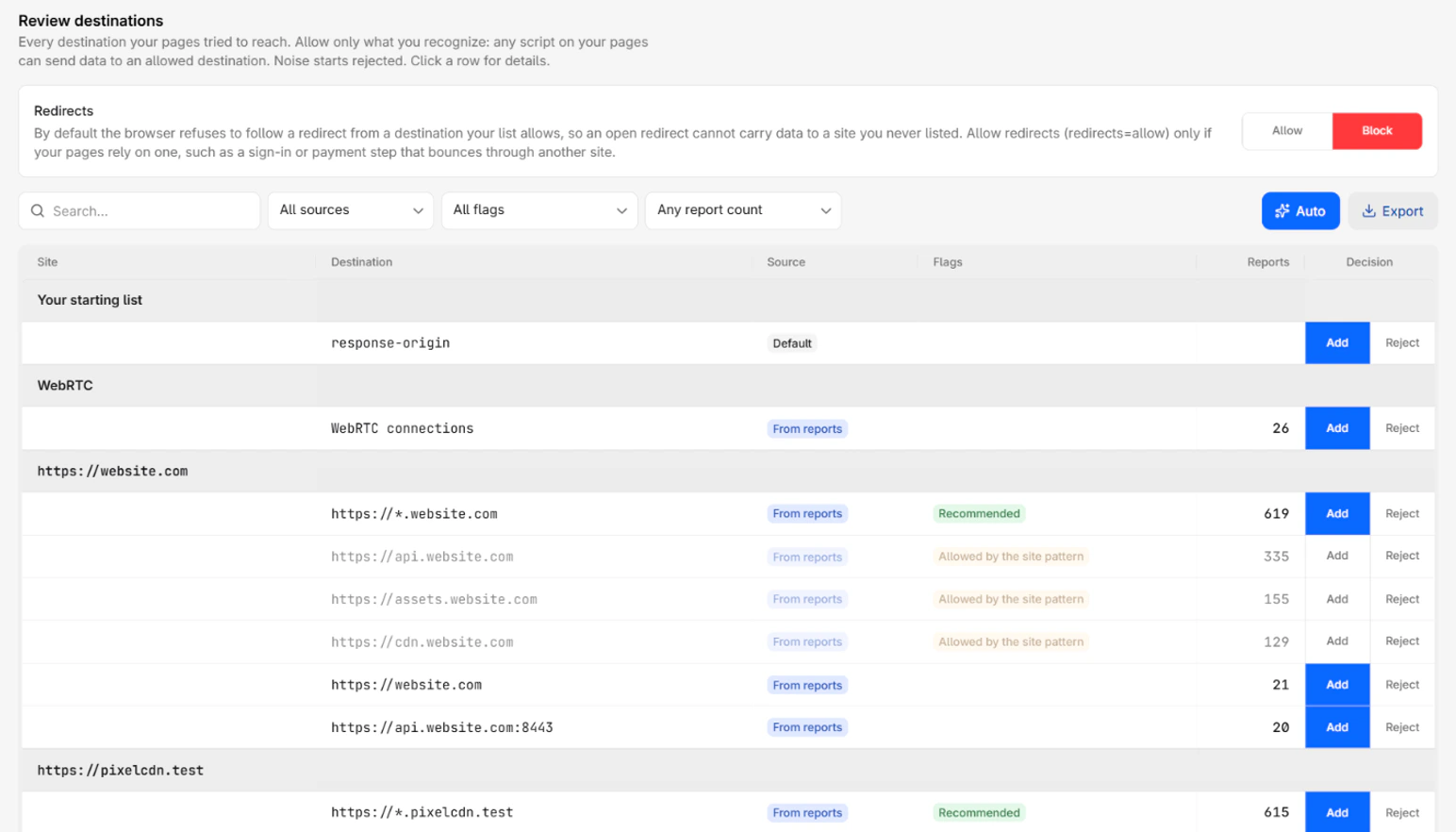
The Review destinations step of the Connection-Allowlist builder lists every destination your pages tried to reach. Each row carries a decision, Add or Reject. The list on the deploy step contains only the added rows, and any script on your pages can send data to them, so allow only what you recognize.
Redirects
The Redirects card above the table decides whether the browser follows a redirect from a destination your list allows. It offers Allow and Block, and starts on Block.
Blocking redirects means an open redirect on an allowed site cannot carry data to a site you never listed. Select Allow only if your pages rely on a redirect through another site, such as a sign-in or payment step. Allow adds redirects=allow to the list. Block is the browser's default, so it adds nothing.
If you started from a pasted list that holds redirects=allow, the card starts on Allow. Auto leaves this setting as it is.
Sections
The table groups its rows into sections, in this order:
| Section | What it holds |
|---|---|
| Your starting list | The entries of the policy you started from, such as response-origin |
| WebRTC | One WebRTC connections row, when browsers reported WebRTC connections |
A site, such as https://example.com | The subdomains of a site with three or more reported subdomains, led by a pattern row |
| WebSockets | ws:// and wss:// destinations that are not part of a site section |
| Other destinations | Every other reported destination |
After Your starting list and WebRTC, the site, WebSockets, and Other destinations sections follow their report count, the busiest first. Inside a site section, the pattern row comes first, then the subdomains by report count.
Site pattern rows
A site gets its own section once browsers reported three or more of its subdomains on the default port. The section opens with a pattern row, such as https://*.example.com, flagged Recommended. One pattern replaces an entry for each subdomain, and it also allows any other subdomain of the site.
The pattern row starts added when three or more of those subdomains are allowed. While it is added, the subdomains it covers are locked. They show Allowed by the site pattern, stay dimmed, and their own decision cannot change. To decide on each subdomain alone, reject the pattern row.
A pattern never covers the site itself or a subdomain on another port. https://example.com and https://api.example.com:8443 keep their own rows and their own decisions, even inside the site section.
Columns
The table has one row per entry or destination, with these columns:
| Column | Meaning |
|---|---|
| Site | The section the row belongs to |
| Destination | The entry or the origin, such as https://api.example.com, or WebRTC connections |
| Source | Where the row comes from, as listed in Row sources |
| Flags | What the row needs you to know, as listed in Flags |
| Reports | How many reports named this destination in the period, empty for entries of your starting list |
| Decision | Add to put the row in the list, or Reject to leave it out |
Rejected rows stay in the table, dimmed, so you can add them back. To sort, select the Reports or Decision column header.
Row sources
The Source column shows one of three labels:
| Label | Meaning |
|---|---|
| Default | The response-origin entry, when you started from Only your own origin |
| From your policy | An entry of the list you pasted, kept as it is |
| From reports | A destination browsers reported in the period, or a site pattern built from them |
Flags
The Flags column shows these chips:
| Flag | Meaning |
|---|---|
| Recommended | A site pattern row, offered because three or more subdomains of the site were reported |
| Already allowed | Your starting list already allows this destination, so nothing needs adding |
| Allowed by the site pattern | The site pattern, or another entry of the list, allows this destination whatever its own decision |
| Noise | Reported fewer than 10 times in the period |
Default decisions
The builder decides every row before you touch it:
- Entries of the starting list start added.
- Reported destinations start added, including WebRTC, which then sets
webrtc=allow. - Destinations flagged as noise start rejected, unless your starting list already allows them.
- A site pattern starts added when three or more of its subdomains are added.
Your own decisions always win over these defaults. They also survive a change of period on the first step, so you can widen the period without losing your work.
Rejecting a destination that an entry of your starting list names exactly takes that entry out of the list too. Adding the entry back allows the destination again.
Filters
The toolbar narrows the table with a search field and three filters:
- The search field matches the destination and the section name.
- All sources shows one row source.
- All flags shows one flag.
- Any report count shows destinations with at least, or fewer than, 10, 100, or 1,000 reports, such as Only 10+ reports. Entries of your starting list have no report count, so this filter hides them.
The source and flag filters offer only the options the table holds.
Auto
The Auto button puts every row back to its default decision. The builder allows every destination that is not noise, rejects noise, restores every entry of the starting list, and turns each site pattern back to its default. A notification says how many destinations were allowed and rejected. The Redirects setting does not change.
Export
The Export button downloads the rows the filters keep as a CSV file, in table order. The file has the Site, Destination, Source, Flags, Reports, and Decision columns, with Added or Rejected as the decision. Each export is recorded in the audit log, with the row count and the active filters.
Details panel
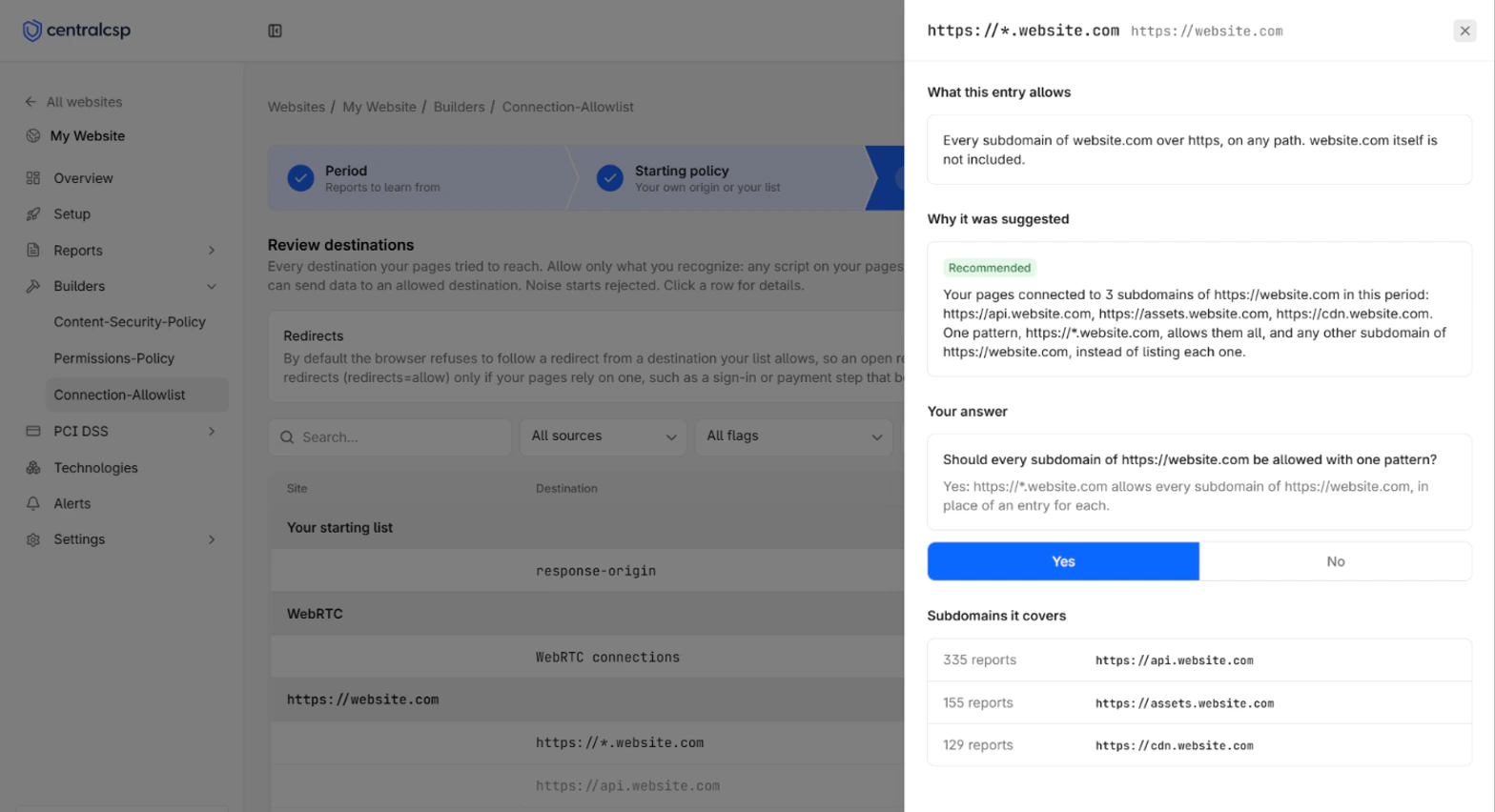
Selecting a row opens its details panel. The panel gathers the evidence behind the row, so you can decide whether your pages really need it. For a reported destination, it holds these sections:
| Section | What it shows | What it tells you |
|---|---|---|
| Why it looks like noise | Why the destination was flagged as noise, such as its low report count | Whether the evidence is too thin to trust |
| Why it was suggested | How many connections browsers blocked or reported, and what adding the row writes | Whether the destination is new, already allowed, or covered by a site pattern |
| Your answer | A yes or no question, such as whether your pages connect to that destination | Yes adds the row and No rejects it, the same as the Decision column |
| In numbers | The report count, the share of all blocked connections, the connection types, the browsers, the mode, and the last time it was reported | Whether the destination is steady traffic or a one-off |
| Top 10 pages where it happened | The ten pages that triggered the most reports | Whether the connection starts from pages you know, such as your checkout |
| Blocked URLs | The full URLs browsers reported for this origin | Which endpoint on the destination your pages call |
Your answer is absent on a row your starting list already allows, and on a subdomain a site pattern covers. On a very busy period, the page list can be replaced by This period holds too many reports to rank its pages. Pick a shorter period to see them.
A pattern row shows What this entry allows, Why it was suggested, Your answer, and Subdomains it covers, the reported subdomains with their report counts. An entry of your starting list shows What this entry allows and Why it is here.
Decide whether to allow a destination
Allow a destination when your pages need it. Reject it when your pages do not need it, or when you do not know where it comes from. A rejected destination is blocked once you enforce the list, so rejecting one your pages need breaks them. Rejecting an unknown destination is how the list protects you: a skimmer on your page has nowhere to send what it collects.
Allow the destination in cases like these:
| Destination | Evidence in the details panel | Decision |
|---|---|---|
https://api.example.com | Thousands of reports, from the pages that call your API, last seen today | Add, it is your own backend on another subdomain |
https://*.example.com pattern | Subdomains it covers lists api, assets, and cdn, which you run yourself | Add, one pattern for your own subdomains |
https://www.google-analytics.com | Reported across your top pages, with blocked URLs on the analytics collection path | Add, if your team runs that analytics tag |
wss://chat.example.net | Reported on your support pages, where a chat widget loads | Add, it is your chat vendor |
| WebRTC connections | Reported on the pages of your video consultation feature | Add, your pages make calls |
Reject the destination in cases like these:
| Destination | Evidence in the details panel | Decision |
|---|---|---|
| An origin reported 3 times | Flagged as noise, from a single page | Reject, the evidence is too thin |
| An origin you do not recognize | Reported only on your checkout, with a blocked URL path you cannot explain | Reject, then investigate it as a possible skimmer |
| WebRTC connections on a site with no calls | Reported on pages that have no video or voice feature | Reject, WebRTC is a channel data can leave through |
A https://*. pattern on a shared hosting domain | Other customers can create subdomains under that site | Reject the pattern, then add only the subdomains you use |
| A vendor your team removed last month | Reported only in the first days of the period | Reject, or pick a period that starts after the change |
Do not allow a destination only to silence a report. The report may be the only sign that a script sends data there. To tell a vendor change from an injection, refer to Vendor update or injection.
Notes
Destinations that belong to a browser extension are set aside, and a note under the table gives their count. An extension runs on the visitor's machine, so it is not your site's traffic.
Next steps
Get started
Build a Connection-Allowlist from your reports. Pick a period, start from your own origin, review the destinations, then deploy in report-only mode.
Builder decision rules
The rules the Connection-Allowlist builder follows to turn reports into origins, group subdomains into one pattern, flag noise, and choose its defaults.