

Alerting in CentralCSP
Send a notification when a new violation type appears, a report volume spikes, a library gains a CVE, or an unjustified script lands on a payment page.
Last update:
Alerting watches the reports arriving for a website and notifies you when something matches a rule you set. 18 events are available, across CSP, script hashes, integrity, network errors, crashes, browser policies, PCI DSS compliance, and the library inventory built by Technologies.
You configure alerting per website under Alerts, which has two tabs: Configuration for channels and rules, Delivery history for what was sent.
Alerting requires a plan that includes it, and the website Manager role to change anything. Viewers and analysts see the configuration read-only.
Channels first, then rules
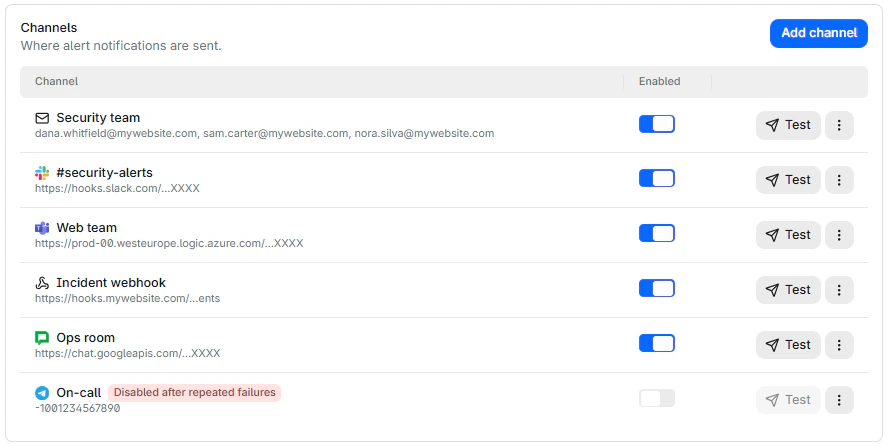
A channel is a destination. Each one can be tested on its own, and switches itself off after five consecutive failures.
Each channel carries its destination, a switch, and a test control:
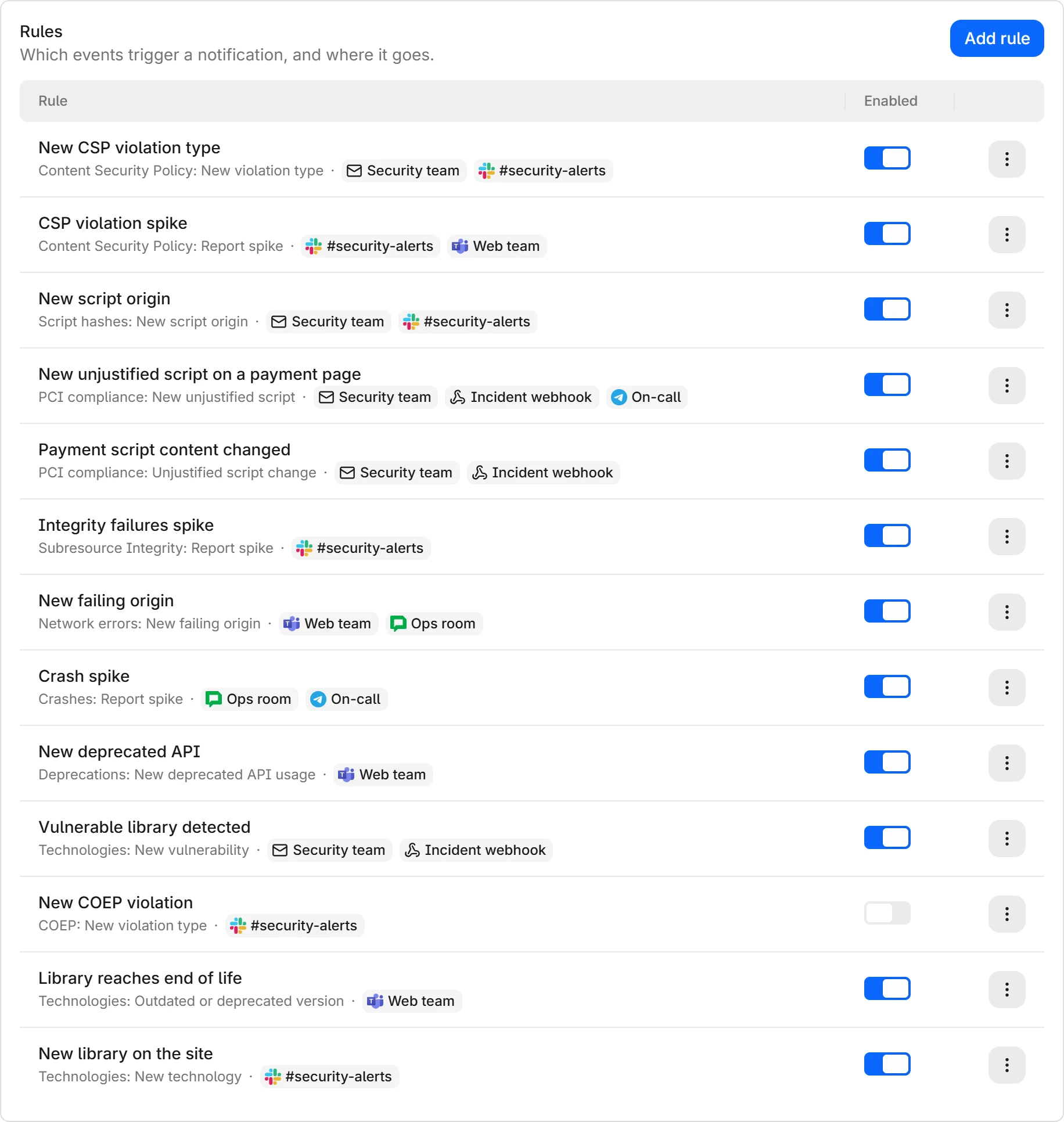
A rule is what to watch and where to send it. Rules cannot exist without a channel, so create one first.
Each rule shows the event it watches and the channels it notifies:
- Add a channel and send a test.
- Add a rule pointing at it.
- Check Delivery history once something fires.
Two things to know before you start
Rules only look forward. Rules check newly arrived reports about once a minute. A new rule never replays history, so it does not tell you about anything that happened before you created it. Use the report pages for that.
Cooldown batches rather than drops. Findings that occur during a cooldown are collected and sent when it ends. A notification lists up to 10 findings, and a rule sends at most 5 notifications per cooldown, the last one saying how many more there were. A noisy hour produces a few grouped messages rather than silence or a flood.
What a notification contains
Every channel receives the same content, in English:
- A headline naming the first finding, with how many others the notification holds.
- The website, with its tags.
- Each finding with its facts and a link to its evidence in the dashboard: the report breakdown, the script, or the technology it is about.
- A Manage this rule link to the rule's delivery history.
Policy findings say whether the browser blocked the request or only reported it, for example Mode: 12 blocked, 3 reported. Technology findings list each advisory with its severity and the version that fixes it, then the recommended upgrade, or find an alternative when no maintained release of the library exists.
Which events to start with
You do not need many rules. Four cover most of the value:
New violation typeon CSP: Something started loading that never loaded before. On a stable site this is the highest signal event available.New unjustified scripton PCI compliance: A script nobody has justified started running on a payment page. Directly tied to PCI DSS 6.4.3, and the one your compliance lead cares about.New script originon script hashes: A new party is now executing code on your pages.New vulnerabilityon Technologies: A library your visitors load just gained a published CVE, on plans that include Technologies.
Spike events are useful once you know your normal volume. Adding them on day one produces noise, because the baseline is still forming.
Usage alerts are separate
Notifications about approaching your report quota are not part of this system. They are configured under Settings > Usage at the workspace level and per website, and they only go by email. For more information, refer to Usage alerts.
Next steps
Review a technology
Filter the Technologies inventory, read the recommended upgrade and each advisory with its fixed version, find the scripts carrying a library, and export CSV.
Get started
Create a channel, test it, add your first rule. Ten minutes to a working alert, with the three rules worth having on any site.