

Alert channels in CentralCSP, Slack, Teams, webhook, email
Where alerts are delivered. Slack, Google Chat, Teams, Telegram, a signed webhook, or email, with the exact URL each one requires.
Last update:
A channel is a destination for notifications. Create one before writing any rules, because rules cannot be created without a channel to point at.
Changing channels requires the website Manager role.
Add a channel
Alerts > Configuration > Add channel. Give it a name, pick a type, and supply the destination.
The type cannot be changed after creation. To switch a channel from Slack to Teams, create a new one and repoint your rules.
The type list in the Add channel dialog offers all six destinations:
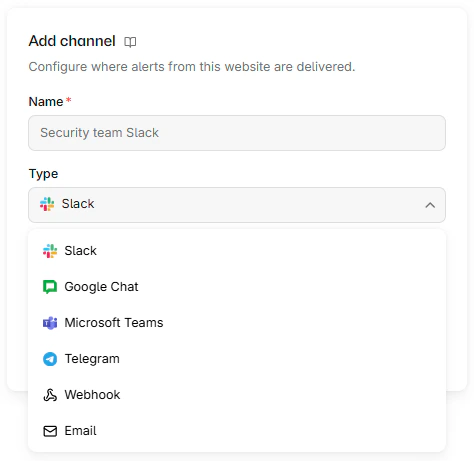
Channel types and what each needs
Each channel type needs a different destination. Each one has a setup guide covering both the platform side and the CentralCSP side:
| Type | What it needs | Required URL shape |
|---|---|---|
| Slack | Incoming webhook URL | Host hooks.slack.com, path starting /services/ |
| Google Chat | Webhook URL | Host chat.googleapis.com, path starting /v1/spaces/ |
| Microsoft Teams | Power Automate workflow URL | A host under logic.azure.com or api.powerplatform.com |
| Telegram | Bot token and chat id | No URL |
| Webhook | Any https URL, plus a signing secret | Public host, https only |
| 1 to 5 addresses | No URL |
The URL shape is validated as you type, so a wrong-format URL is rejected before you save.
Teams legacy connectors are not supported
Microsoft retired Office 365 connectors. Only Power Automate Workflows URLs are accepted, which is why the host must be on logic.azure.com or api.powerplatform.com. If your existing Teams webhook is an office.com connector URL, create a Workflow first; the Teams setup guide walks through it.
Internal and private addresses are rejected, including localhost, .local, .internal, hosts with no dot, and anything resolving to a private IP range. The host is re-checked on every send, so a channel cannot be pointed at internal infrastructure after the fact.
Email channel recipients
Every recipient address must belong to a workspace member with access to the website; an outside address is rejected when you save. The email setup guide covers how recipients are resolved and what happens when members change.
Webhook signatures
A webhook channel requires a signing secret of at least eight characters, and every delivery is HMAC-SHA256 signed. The webhook setup guide documents the payload shape, the signature headers, and verification code.
Secrets, URLs, and bot tokens are never returned by the API. Editing a channel shows a masked preview, and leaving the field empty keeps the existing value.
Test before you rely on it
Test sends a sample alert immediately, using a fake CSP violation event and marked [Test]. It confirms the destination accepts messages, which is the failure you want to find now rather than during an incident.
Rate-limited to one test per channel every 15 seconds, and 20 tests per minute across the workspace.
A failed test means the destination refused the message. That is a real answer, not a transient error: check the URL, the token, and whether the receiving app is still installed.
Channels turn themselves off
After five consecutive failed deliveries a channel switches off automatically.
To recover, fix the destination, then flip the Enabled switch back on. Turning it back on clears the failure count. Any successful delivery also resets the counter, so an intermittent destination does not accumulate toward the limit.
This is worth knowing because a revoked Slack webhook fails silently from your point of view: alerts stop, and nothing in the report pages changes. Check the channels list if alerts go quiet.
Delete a channel
Deleting a channel stops any rule using it from delivering. Delivery history is kept, and rules that referenced it do not break.
Next steps
- Set up your destination. Slack, Google Chat, Microsoft Teams, Telegram, Webhook, or Email.
- Rules
- Delivery history