

Review a technology
Filter the Technologies inventory, read the recommended upgrade and each advisory with its fixed version, find the scripts carrying a library, and export CSV.
Last update:
The Technologies page is a table with filters, and a drawer per row. This page covers each part, from narrowing the list to deciding what to do with a finding.
Filter the inventory
The toolbar holds a search box and four filters:
| Control | What it does |
|---|---|
| Search | Matches part of a library name |
| Status | Keeps one or more statuses: Up to date, Outdated, Dormant, Superseded, Deprecated, Unknown |
| Severity | Keeps technologies whose highest severity is at least Low, Medium, High, or Critical |
| Vulnerable only / Not vulnerable | Keeps only technologies with, or only technologies without, a known vulnerability |
| Fix available / No fix available | Keeps the vulnerable technologies that have a recommended upgrade, or the ones that have none |
The filters combine, and the URL carries them, so a filtered view can be shared as a link. The table lists the vulnerable versions first, most severe first, then the others from the most urgent status to up to date. Three views cover most of the work:
- Vulnerable only with the severity at High is the patch list.
- No fix available lists the vulnerable libraries an upgrade does not fix, the ones to replace or to mitigate.
- Status at Outdated, Superseded, and Deprecated is the upgrade backlog.
With the list narrowed, select a row to open it.
Open a technology
Select a row to open the drawer, the panel that holds everything known about that library version. The header shows the library, the version, its highest severity, and its status. The recommendation comes next, then four sections: Overview, Vulnerabilities, Scripts, and History.
Overview repeats the row with the meaning of the status, the release line, and the website of the library, so you can jump to its release notes.
Read the recommended upgrade
Recommended upgrade names the release to move to and why it was picked, for example Fixes every known vulnerability or Latest release of this line. Below it, the drawer lists:
- Minimum fix, the lowest release clear of every advisory, when it differs from the recommendation.
- Latest of this line, the newest release of the major line you run.
- Latest of the latest line, the newest release of the line the library still maintains, with a warning when it starts a new major version, so you read its breaking changes first.
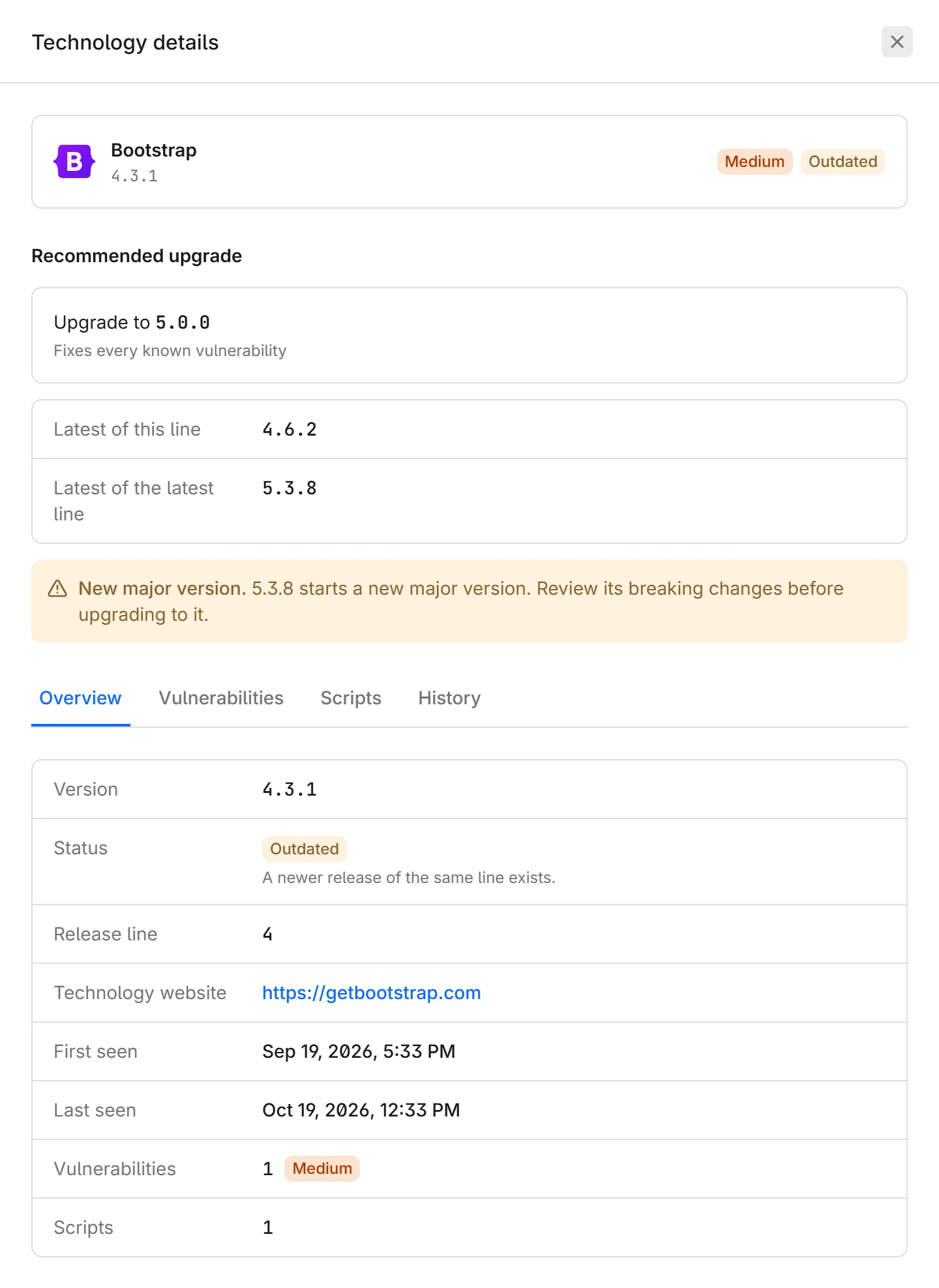
When no line of the library is maintained anymore, the section reads Recommended action with Find an alternative: no upgrade fixes it, so plan its replacement.
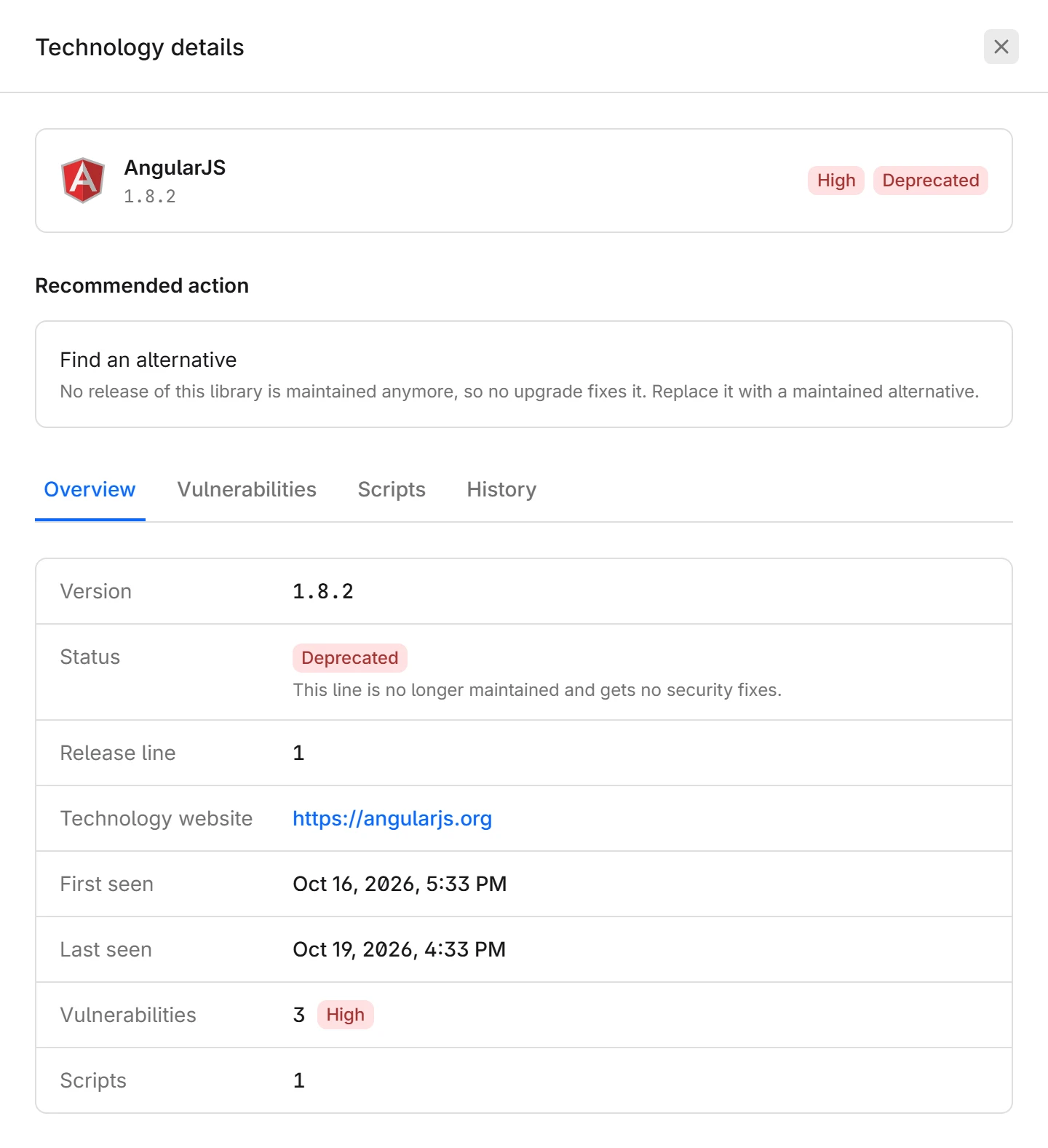
The reasons are listed in Recommended upgrade. Nothing shows when the version needs no upgrade.
Read an advisory
Each entry in Vulnerabilities is one advisory affecting the version you run. Read it in this order:
- Check the severity label, or
No severitywhen the source assigned none. - Open the advisory IDs. A Common Vulnerabilities and Exposures (CVE) ID links to its page in the National Vulnerability Database, and a GitHub advisory ID to its GitHub page. An advisory with no CVE shows
No CVE assigned, and it is still a published vulnerability. - Read the one-line summary of what the flaw allows.
- Check Affected versions, a range such as
From 1.2.0 below 3.5.0, with any excluded versions listed. - Check Fixed in, the first release this advisory does not affect, or
No fixed version known. The recommended upgrade already accounts for every advisory. - Follow Weakness, the Common Weakness Enumeration (CWE) class, linked to its definition.
- Open Read more for the pages of the advisory itself.
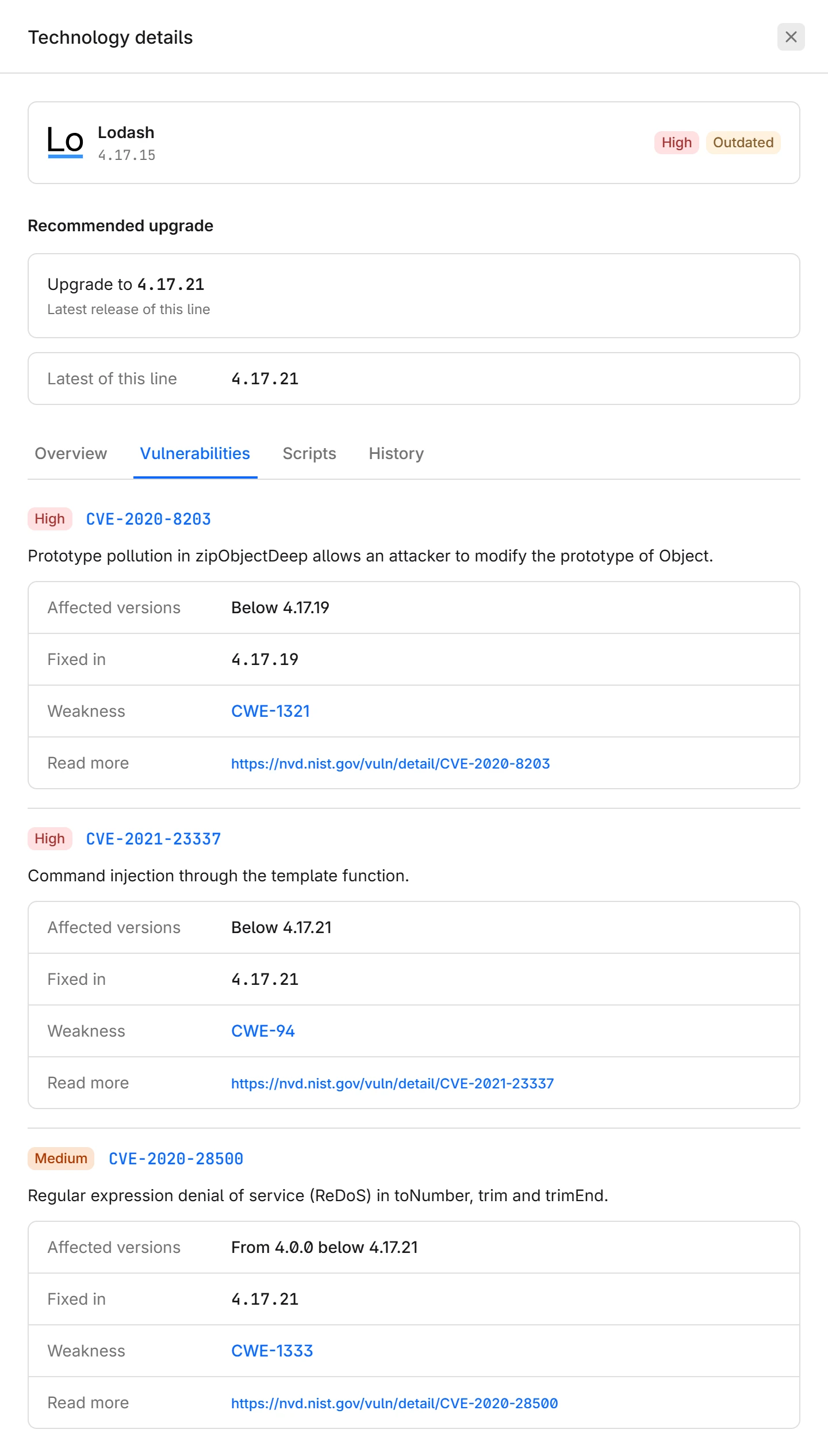
An empty list reads No known vulnerabilities. It means no advisory in the vulnerability sources CentralCSP tracks covers this version, not that the version has been audited.
Find which script carries it
Scripts lists every script file on the website that carries this version, most recently seen first, with its URL, its size, and first and last seen.
The URL is the answer to "where does this come from", and each case has a different owner:
- Your own origin means your bundle or a vendored copy.
- A CDN host means a script tag pointing at it.
- A tag manager or vendor host means a third party ships the library to your visitors.
The fix goes to that owner. The same script shows its library in the Technology column of the CSP hashes page, where CSP stands for Content Security Policy, and in the script panel of the PCI DSS (Payment Card Industry Data Security Standard) script inventory, so you can cross-reference it there.
When browsers no longer load a version, the list reads No script carries this version anymore and the row leaves the inventory after seven days.
Follow the history
History is a timeline of what changed for this version on this website, newest first:
| Entry | Meaning |
|---|---|
| Detected | A script carrying this version was first reported |
| New vulnerability | A source published an advisory for this version, with the CVE IDs and severity |
| Status changed | The lifecycle status moved, for example from Up to date to Outdated |
| Removed | No script carried this version anymore |
The history outlives the row, so a library that comes back after a rollback keeps its earlier entries.
Use it to answer "when did this become a problem". A New vulnerability entry dated after Detected means the advisory appeared after the library was already in production, which is the case the New vulnerability alert rule exists for.
Act on a finding
The page records what runs. It does not change your site. What to do depends on the row:
- Vulnerable with a recommended upgrade: Upgrade to the recommended version. It is checked against every known advisory of the library.
- Vulnerable with no fix available: No release fixes it yet. Check whether the vulnerable code path applies to how you use the library, and watch the history for a status change.
- Superseded: Plan the move to the current major line, and read its release notes for breaking changes before you schedule it.
- Deprecated: Move to the maintained line the recommendation points to. When it says Find an alternative, replace the library: its next advisory will not get a fix.
- Unknown version: Open the script URL and check the version yourself. Vulnerability matching needs a version to compare against.
- A third-party script: Contact the vendor, or remove the tag until they update it.
For a worked example of a library that arrives through several of these routes at once, refer to Which jQuery versions are vulnerable.
If the script also runs on a payment page, record the decision as described in Justifying scripts, which is where your assessor reads it.
Export the inventory to CSV
To download the current view as CSV, select Export in the toolbar. The export honors the filters and has no row limit. The file is named after the website and the day, and it has these columns:
- Library name and version
- Status
- Whether it is vulnerable
- Number of advisories
- Highest severity
- Number of scripts
- Release line, latest release of the line, and latest release of the latest line
- Recommended upgrade and why it was picked
- First seen and last seen
- URL of the most recently seen script
A filtered export is the useful one: Vulnerable only gives the patch list to hand to the team that owns the site. The same export, and the list behind it, are available on the REST API for anything scheduled.
Next steps
- Get started for the initial review order and the two alert rules
- Rules to be notified of the next advisory
- CSP hashes for the raw hash reports
- Technologies overview for the statuses and the daily cap
Get started
Go from an empty Technologies page to a reviewed client-side SBOM with alerts. Confirm hash reporting, review the vulnerable rows, then add the two rules.
Overview
Send a notification when a new violation type appears, a report volume spikes, a library gains a CVE, or an unjustified script lands on a payment page.