

Tags
Label websites with workspace tags, such as environment, team, or region, then filter the websites list by them. Available on every plan.
Last update:
Tags label websites so a workspace with dozens of sites shows at a glance which one is which. Typical uses are the environment (PRD, UAT, INT, QUA), the owning team, the region, or the business unit.
The common case is telling development environments from production. Tag each site with its environment instead of prefixing website names, then filter the websites list down to the environment you care about.
Tags belong to the workspace, so every website draws from the same list and PRD means the same thing everywhere. Tags are available on every plan.
These are not the same as compliance tags, which classify scripts in the PCI DSS inventory.
Who can do what
| Action | Who |
|---|---|
| Create, edit, and delete tags | Workspace Owner and Admin |
| Add and remove tags on a website | Website Manager and Admin |
| See tags and filter by them | Every member, on the websites they can access |
Workspace owners and admins are website Admin on every site, so they can also tag any website. For more information, refer to Roles and permissions.
Manage tags
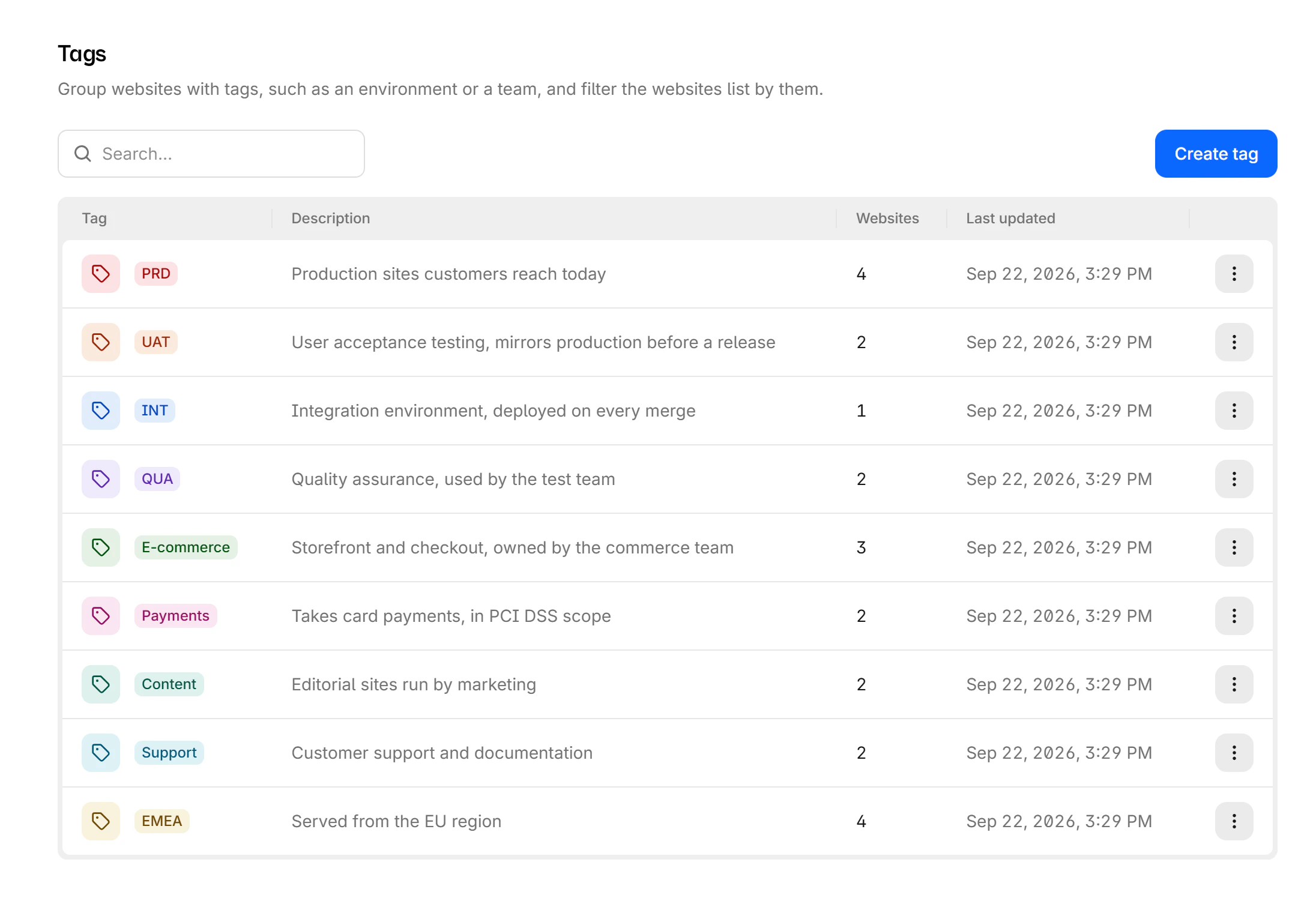
Workspace tags live under Settings > Tags, with each tag, its description, and how many websites use it.
Create a tag
- Go to Settings > Tags.
- Select Create tag.
- Enter a Name, an optional Description, and pick a Color.
- Select Create tag.
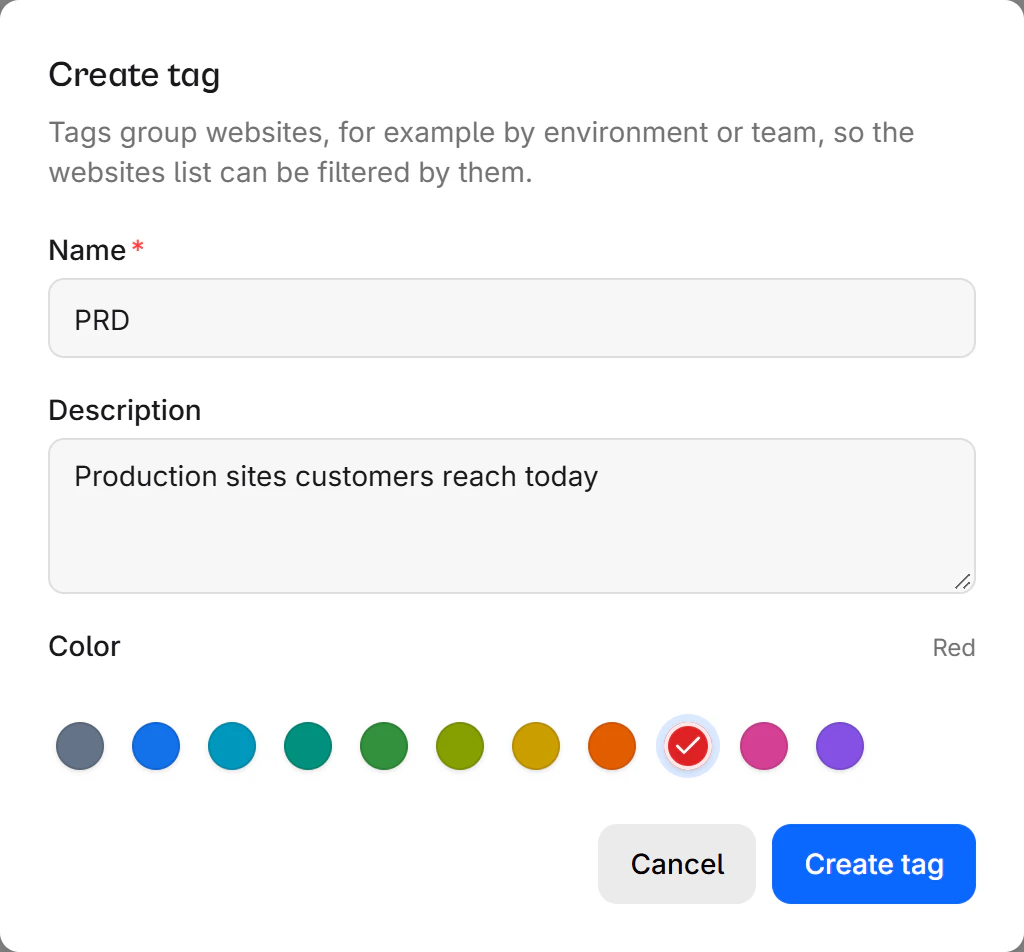
Admins can also create a tag without leaving a website: wherever you pick tags, select New tag above the picker.
Edit or delete a tag
Each row's actions menu has Edit and Delete. Editing a tag updates it on every website that carries it.
Deleting a tag removes it from every website
After you confirm, the tag disappears from every website that carried it. The websites themselves are untouched: their settings, reports, and other tags stay as they were.
Tag a website
You need the website Manager role. You can add or remove tags in two places, both with the same Tags picker.
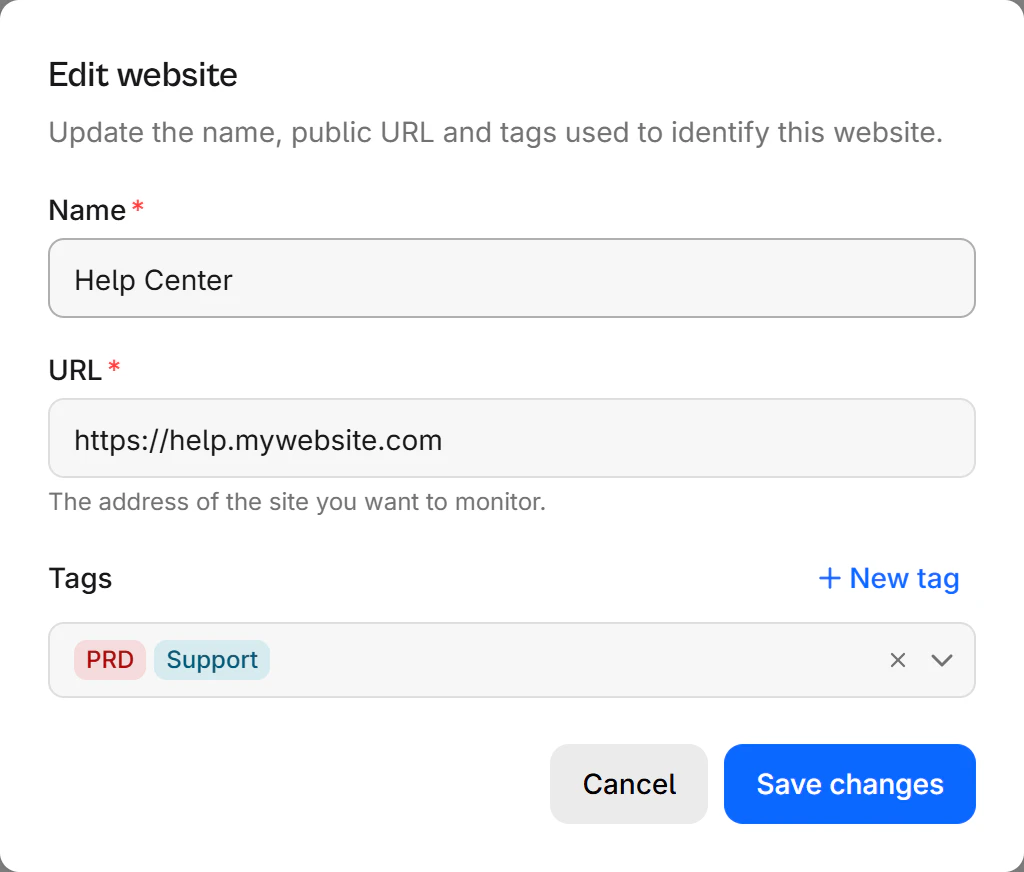
When you add or edit a website. The Add website drawer and the Edit website dialog, opened from a website's actions menu in the websites list, both have a Tags picker.
From the website's settings. Go to the website's Settings > General. The Tags card has the picker and its own Save changes button.
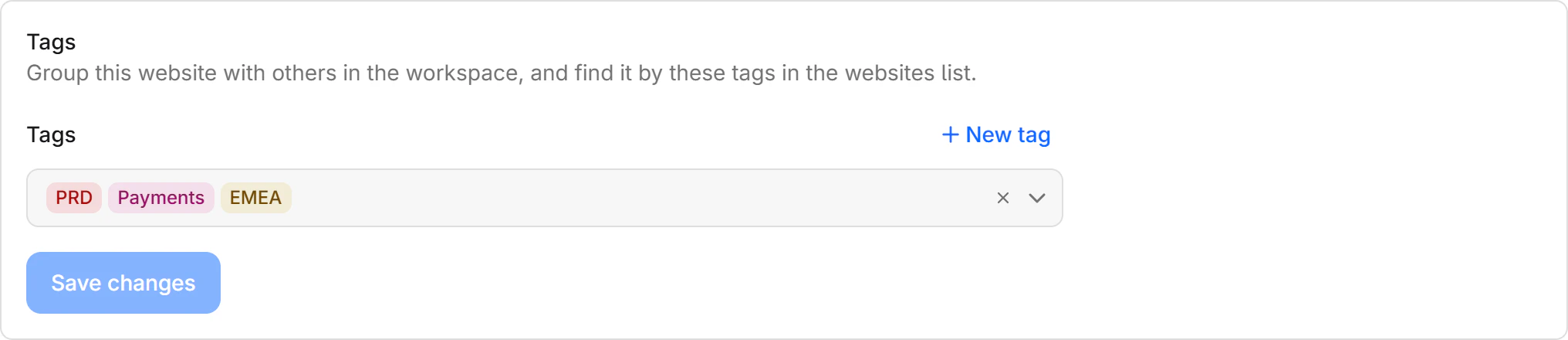
To remove a tag from a website, deselect it in the picker, then save.
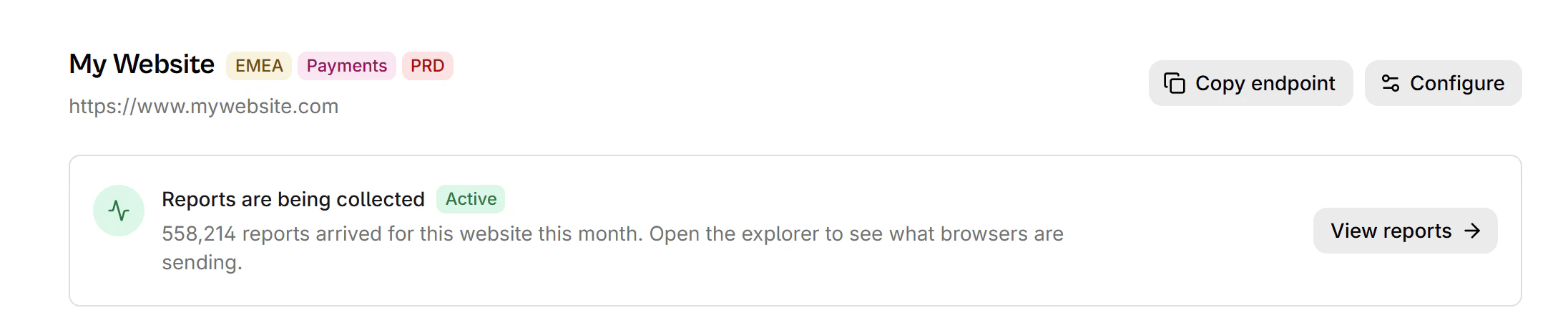
The website's overview page also shows its tags in the header.
Find websites by tag
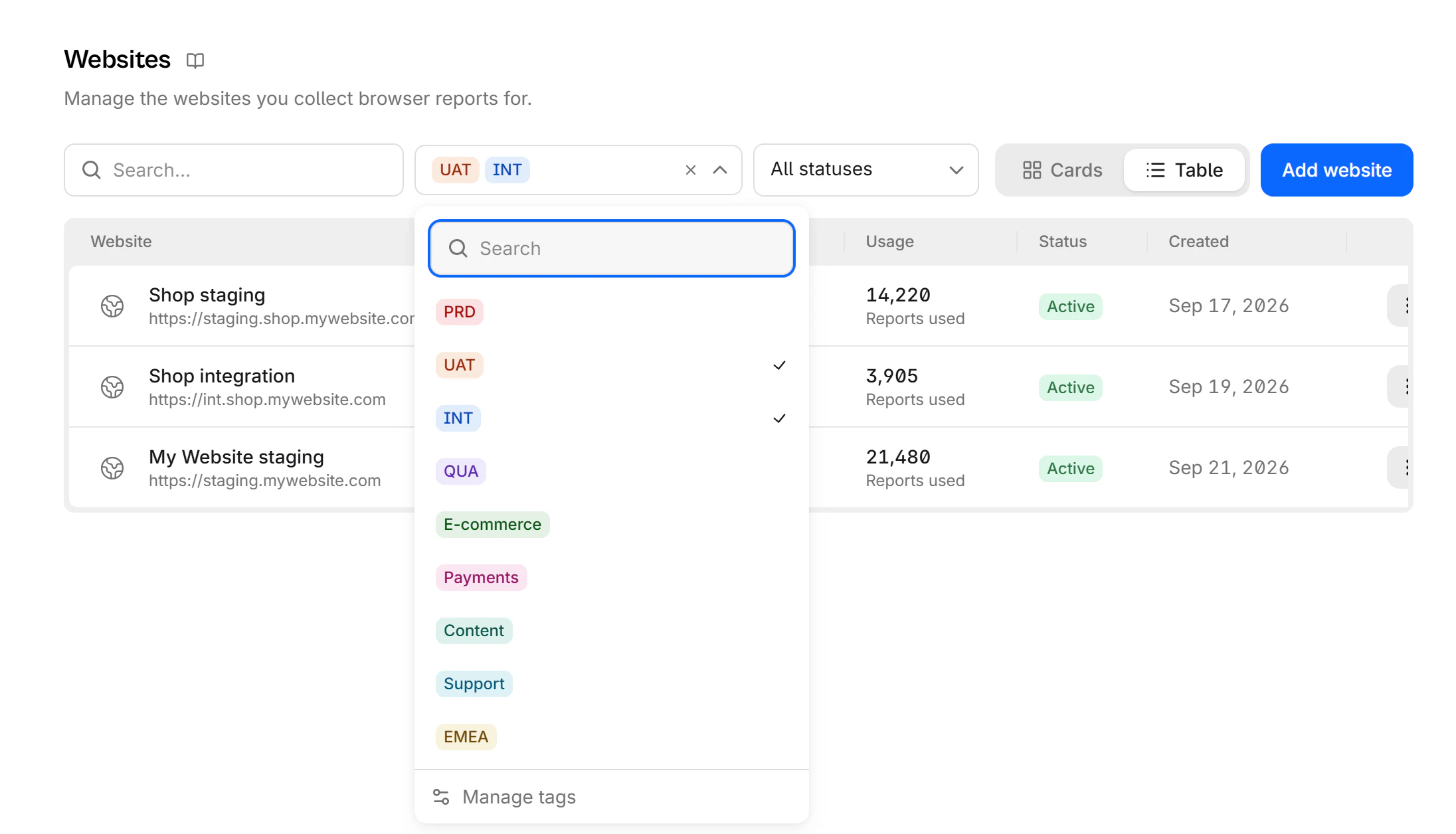
The Websites page shows each website's tags, in both the Cards and the Table view. Next to the search, the toolbar has two filters:
- Filter by tags: Pick one or more tags. A website matches if it carries any of the selected tags, so picking
UATandINTlists every non-production site from both environments. The dropdown also has a Manage tags link to Settings > Tags. - Status: Show only Active or Disabled websites.
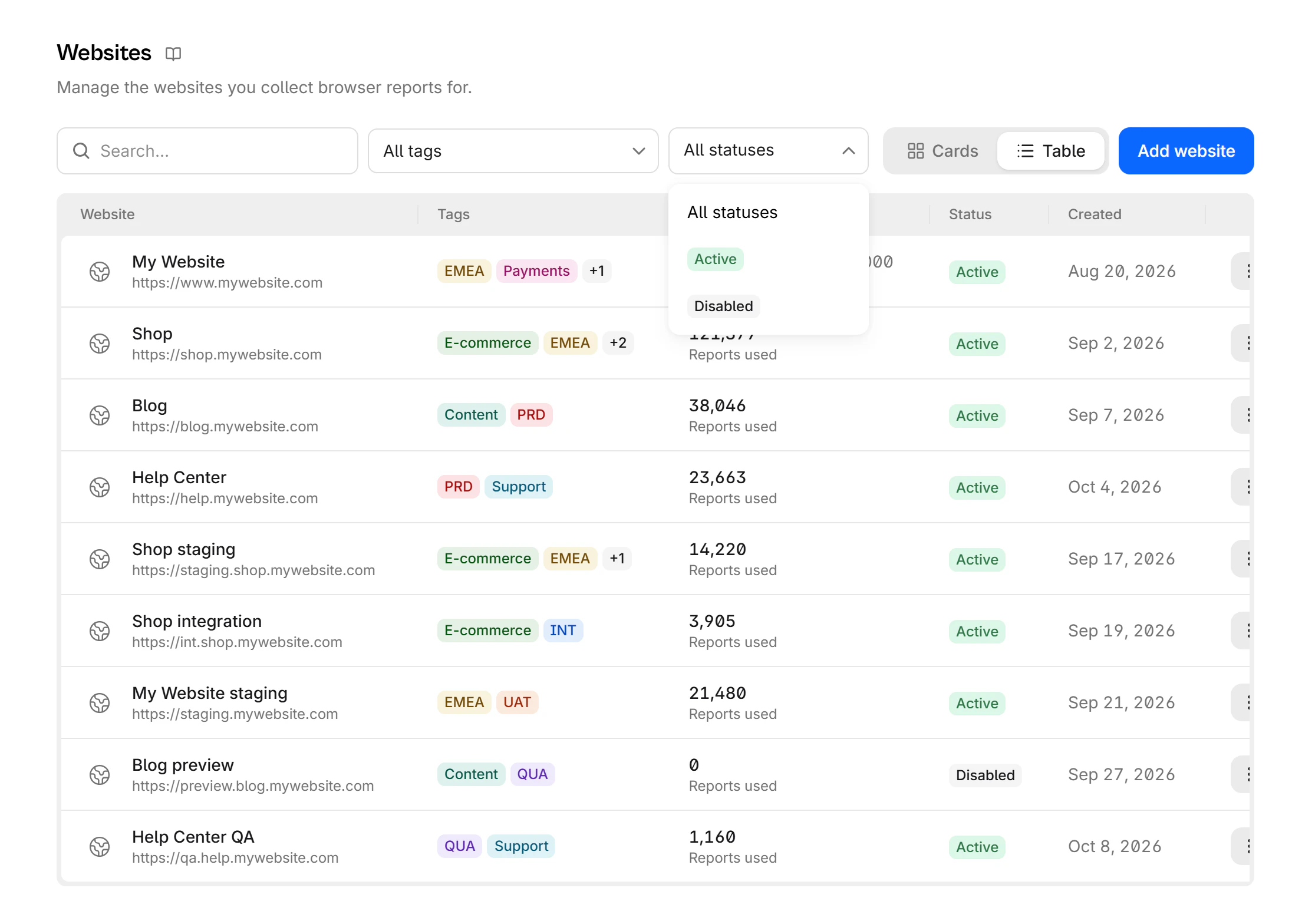
In the Table view, select the Website, Usage, Status, or Created column header to sort by it. Select it again to reverse the order.
Audit log
Creating, editing, and deleting tags, and changing the tags on a website, all appear in the workspace audit log.
API and MCP
Tags can also be managed through the API and the Model Context Protocol (MCP) server.