

Inventory rules
Decide scripts automatically by URL pattern. Approve the ones you trust, take visitor software out of PCI scope, and keep every human decision intact.
Last update:
An inventory rule decides any script whose URL matches a pattern, so routine decisions do not consume review time. A rule either approves matching scripts with a justification, or excludes them from PCI scope as software the visitor's own browser injected.
Requires the website Manager role.
The two rule types
Both types run in the same matching pass, record the same written text, and differ only in the status they produce.
| Type | Sets matching scripts to | Use it for |
|---|---|---|
| Approve | Justified | Your own origin, and providers you have already vetted |
| Exclude | Out of scope | Software a visitor's browser injects, which the site never asked for |
Approve is the default.
What exclusion actually claims
Excluding is not rejecting, and the difference matters to an assessor.
Rejecting a script says it runs on your payment page without authorization. That is a finding, and it stays a finding for as long as the script is still observed. Only a person can reject a script.
Excluding a script says it is not your script at all. The same claim already covers browser extensions, which are filtered out before they ever reach the inventory. An exclude rule extends it to the rest of the visitor-side software your patterns can name: a security product, a translating proxy, an accessibility overlay.
An excluded script leaves every count that reads as a problem. It is out of the review queue, out of both halves of the review coverage ratio, out of the report's headline figures, and out of the PCI compliance alerts.
Exclusion removes a script from the evidence, so keep the pattern narrow
A rule that matches more than you intended takes real scripts out of scope silently. Nothing turns red, nothing lands in the queue, and no alert fires, because that is precisely what exclusion is for. A script an attacker adds to the page disappears the same way the noise does if a pattern happens to cover it.
The test is ownership, not annoyance. Ask whether the page would still load this script for a visitor on a clean browser profile. If the answer is yes, it belongs in the inventory even when it is tedious to review. Exclusion is for what the site does not load.
Excluded scripts are not hidden. They stay in the inventory under the Out of scope status, and the evidence pack lists each one with its reason and the rule that excluded it.
Add a rule
PCI DSS > Inventory rules > Add rule. Five fields:
| Field | Notes |
|---|---|
| What the rule does | Approve matching scripts or Exclude as visitor software |
| Name | A label, such as Approved payment provider |
| Script URL pattern | * is the only wildcard, matches any characters including slashes |
| Justification or Reason | Required, and this is the text an assessor reads |
| Tags | Optional, applied to every script the rule matches, whichever decision it makes |
https://js.stripe.com/*The text field is named for the decision. On an approve rule it is the Justification, and it should say what the script does and who authorized it. On an exclude rule it is the Reason, and it should name whose software injects the script and why the page never asked for it. "Injected by a page translation proxy on the visitor's device, not loaded by our pages" is evidence. "Noise" is not.
Up to 200 rules per website.
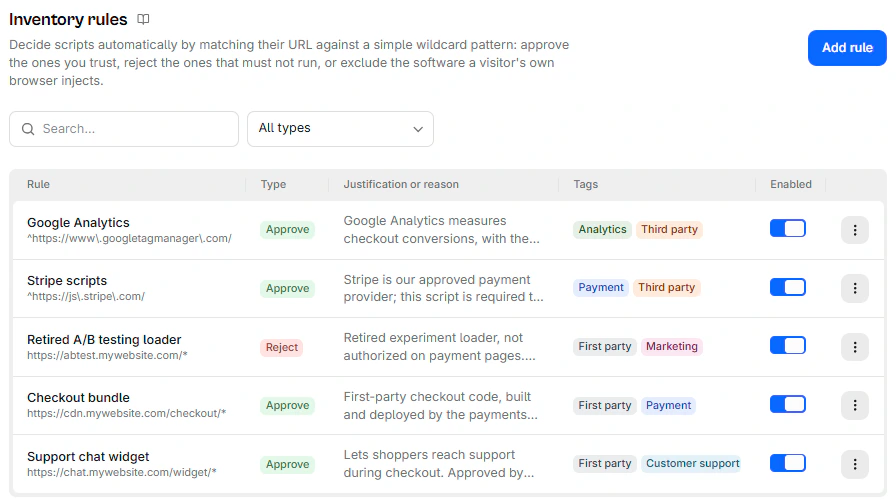
The list shows each rule's type, pattern, text, and tags, and you can filter it by type or search it by name:
Pattern anchoring
Same syntax as payment pages, and the same trap: the pattern is anchored, so it must match the entire script URL.
https://*.stripe.com/* matches https://js.stripe.com/v3/. A bare stripe.com matches nothing at all.
This matters more on an exclude rule than on an approve rule. An approve pattern that is too wide shows up as scripts you did not expect to see justified. An exclude pattern that is too wide shows up as nothing at all, because the scripts it swallowed are exactly the ones that stopped appearing anywhere you look.
Retroactive application
Creating or updating a rule rebuilds the inventory immediately, and the rule decides scripts already in the inventory, not just ones detected later.
That is what makes rules worth writing first. Add your approve rules before you start reviewing by hand, and the manual list is whatever is left.
It also means an exclude rule takes effect backwards. A pattern you add today clears matching scripts out of the queue that have been waiting there, including ones you had not looked at yet.
Precedence
Rules are evaluated as one ordered list, whatever their type, and the first match wins. Remaining rules are not evaluated. If a script matches both an approve rule and an exclude rule, the earlier rule decides it and the other never runs.
The order is the rule's sort order, then creation order. There is no priority control in the interface.
What a rule will and will not decide
The dividing line is who made the existing decision. A rule never changes a decision a person made, in either direction: an exclude rule cannot take out what someone approved, and an approve rule cannot bring back what someone rejected. Rules stay free to re-decide their own earlier work, so the inventory follows the rule set as you edit it.
| Script state | Does a rule decide it? |
|---|---|
| Unreviewed | Yes |
| Needs review, hash changed | Yes |
| Decided by a rule, hash unchanged | No, the decision already matches the rule set |
| Decided by a rule, hash then changed | Yes, the current rule set decides again |
| Approved by a person | Never |
| Rejected by a person | Never |
When a rule takes over a script that a previous rule decided, it clears the reviewer name from the record, because no person made that decision.
A hash change always comes back to you
A script you approved yourself keeps your justification, and no rule overwrites it. When its content changes, it moves to Needs review and returns to your queue even if a rule pattern covers the URL. A standing rule cannot approve a hash a person has not read.
Turn off or delete a rule
The Enabled switch stops a rule matching anything new. It does not undo decisions the rule already made. Approved scripts stay approved and excluded scripts stay out of scope until something makes them reviewable again, such as a hash change.
Deleting behaves the same way, and existing entries stay in the ledger. One quirk: deleting a rule does not trigger a rebuild, though nothing about existing scripts would change anyway.
Reversing an exclude rule you regret takes two steps. Disabling or deleting it stops future matches but leaves the scripts it already excluded sitting at Out of scope, so find them in the inventory and decide them yourself. Filter the inventory by Out of scope, which appears on the full script list rather than on the review queue, and filter the rules list by Exclude to audit what your patterns have taken out.
What an assessor sees
Both decisions land in the append-only ledger, under separate events, so the two never read as the same thing. An approve rule logs Rule applied. An exclude rule logs its own event, shown in the script History as Excluded from scope by a rule. Both appear in the evidence export as well.
The report keeps exclusions auditable rather than silent. Its rules section carries a Decision column, its summary counts scripts in scope beside the number excluded as visitor software, and a dedicated Scripts excluded from scope section lists every one with its reason and the rule responsible.
Creating a rule is recorded in the audit log with its action, so an exclude rule added to the workspace is traceable to whoever added it.
When a rule stops working
A rule whose pattern is no longer valid is skipped silently when the inventory is rebuilt, and its scripts stay unreviewed. If a rule you expect to be working leaves scripts in Action required, re-save it to revalidate the pattern.
A skipped exclude rule fails safe: its scripts stay in the queue rather than leaving scope unnoticed.
Next steps
- Justify scripts
- Tags
- Reconciliation
- Evidence export for how exclusions are presented
Justify scripts
Record why each script on a payment page is authorized, or reject it. Both decisions require written reasons and both land in an append-only ledger.
Origins
Every origin serving scripts on your payment pages, classified first-party or third-party. The automatic classification is stricter than you expect.