

Invite and join a workspace
Invite someone to your workspace step by step, follow the same invitation from the other side, and fix the problems people hit most.
Last update:
An invitation is how someone joins your workspace. An Admin sends it by email, and the person accepts it after signing in or creating an account.
The flow, end to end:
- An Admin invites an email address with a workspace role.
- The person opens the invitation email.
- They sign in, or create an account, with that address.
- They accept the invitation and become a member.
Invite someone (admin side)
Before you start:
- You are an Admin or the Owner of the workspace.
- The workspace has a plan, with a free seat. Seats count members plus pending invitations.
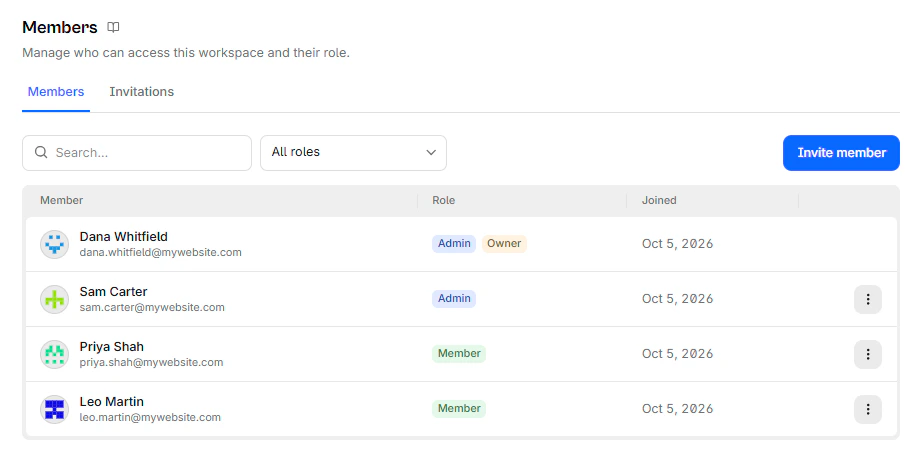
1. Open the members page
Go to Team > Members and select Invite member.
2. Enter the address and choose a role
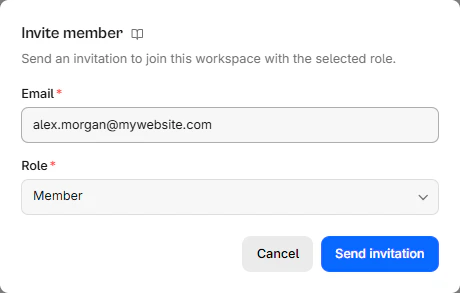
Type the person's email address, then choose their workspace role:
- Member: Works only on the websites they are given access to.
- Admin: Manages the workspace and reaches every website. Only the Owner can invite an Admin.
For more information, refer to Roles and permissions.
3. Send the invitation
Select Send invitation. The email goes out right away. The invitation is valid for 7 days.
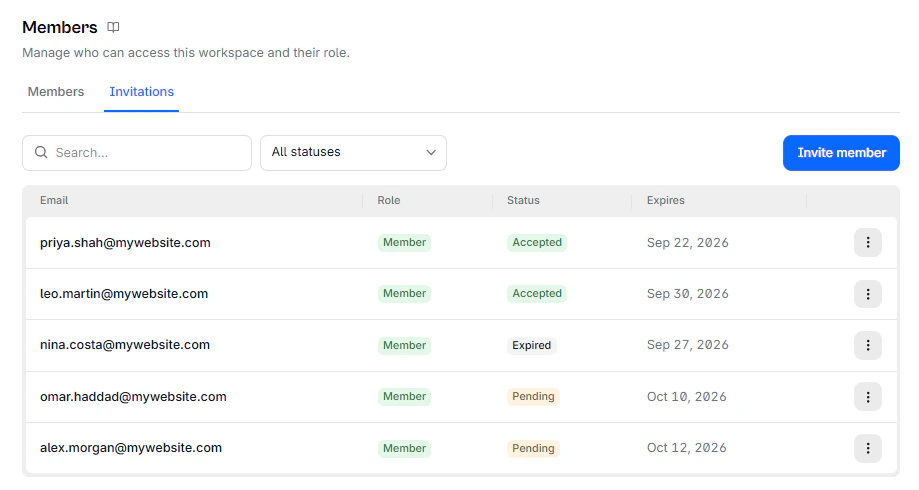
You can also invite people while creating a workspace, at the Invite your team step. Everyone invited there joins as a Member.
4. Follow the invitation
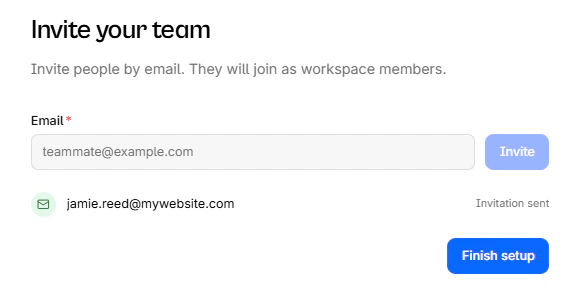
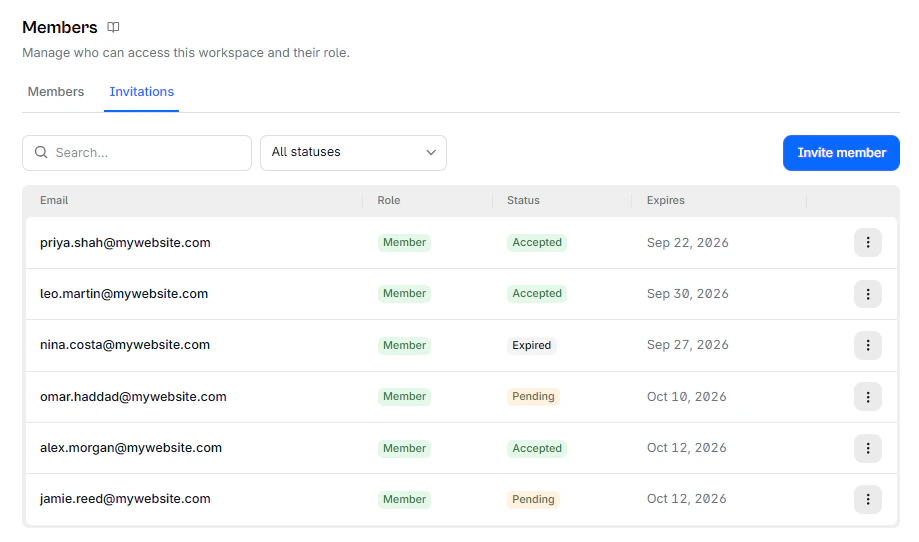
The Invitations tab shows where each invitation stands:
| Status | Meaning |
|---|---|
| Pending | Sent, waiting to be accepted |
| Accepted | The person joined and is on the Members tab |
| Expired | Not accepted within 7 days. Send a new one |
A new Member sees no websites until you give them access. For more information, refer to Website access.
Join a workspace (invitee side)
1. Open the invitation email
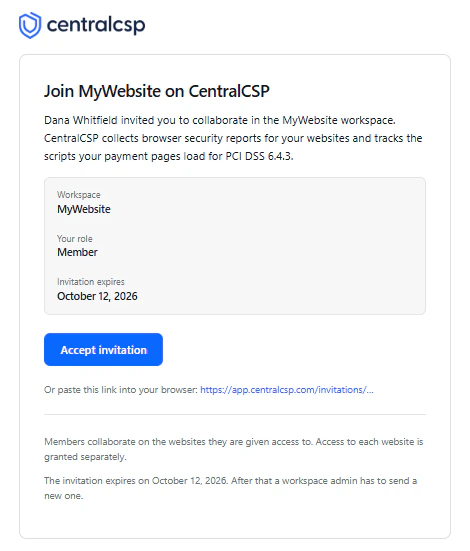
The email is titled You are invited to the {workspace} workspace on CentralCSP. It shows the workspace, your role, and the expiry date.
Select Accept invitation.
2. Sign in or create your account
The link opens the CentralCSP sign-in page. Use the address the invitation was sent to.
- You have an account: Sign in.
- You are new to CentralCSP: Create your account from the sign-in page.
You come back to the invitation once you are signed in.
3. Accept the invitation
The invitation page shows the workspace, your role, and the expiry date. Select Accept invitation.
Creating an account does not join you to the workspace. You still need to accept.
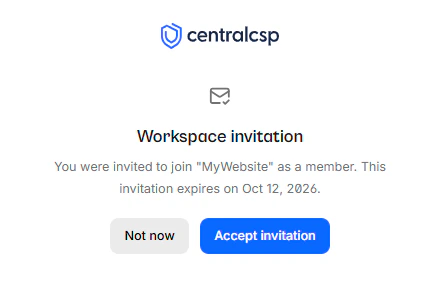
Not now leaves the invitation open. You can come back from the email until it expires.
4. Open the workspace
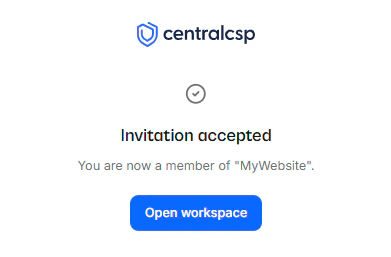
The page confirms Invitation accepted. Select Open workspace.
What to expect next:
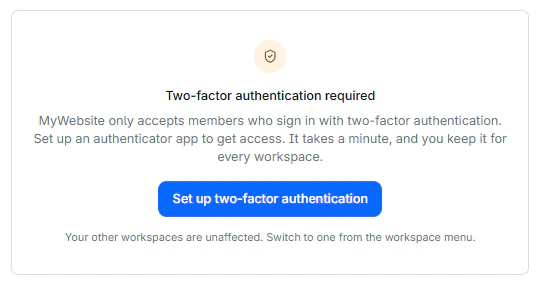
- Two-factor authentication: If the workspace requires it, you set it up before you can continue. For more information, refer to Two-factor authentication.
- No websites yet: As a Member, you see the websites an Admin gives you access to. Ask them if the list is empty.
Fix common problems
When joining
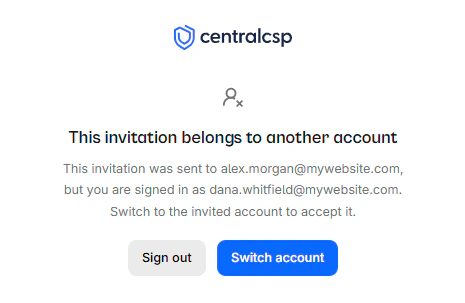
The most common problem is opening the invitation while signed in with another address:
| What you see | Why | What to do |
|---|---|---|
| This invitation belongs to another account | You are signed in with a different address | Select Switch account and sign in with the invited address |
| Invitation expired | More than 7 days passed | Ask an Admin for a new invitation |
| Invitation unavailable | The invitation was revoked | Ask an Admin for a new invitation |
| Invitation already accepted | You already joined | Select Go to dashboard |
| Could not accept invitation, member limit reached | Every seat is taken | Ask an Admin to free a seat or upgrade, then select Try again |
| No email arrived | Spam filter, or a typo in the address | Check your spam folder, then ask an Admin to send a new one |
When inviting
| What you see | Why | What to do |
|---|---|---|
| Choose a plan instead of Invite member | The workspace has no plan | Choose a plan, then invite |
| Member limit reached and Upgrade plan | Members plus pending invitations fill every seat | Revoke invitations nobody will accept, remove a member, or upgrade |
| This address already has a pending invitation | An earlier invitation to that address is still listed, even if expired | Revoke it, then invite again |
| Only the workspace owner can invite administrators | You are an Admin, not the Owner | Invite them as a Member, or ask the Owner |
Send an invitation again
There is no resend button. To send a new invitation, for an expired one, a lost email, or a wrong role:
- On the Invitations tab, open the row menu and select Revoke. The old link stops working immediately.
- Invite the address again with Invite member.
Expired invitations do not take a seat, but they block a new invitation to the same address until you revoke them.