

Explorer
Inspect individual browser reports with no aggregation. Pick a type, apply per-type facet filters, read the stored JSON, and export the result as CSV.
Last update:
The Explorer shows one row per report with nothing grouped. Use it to confirm a specific event or read a raw payload. For finding patterns, use the per-type pages instead.
Find it under the website's Reports > Explorer.
Pick a type first
The Report type dropdown lists the types your plan includes and defaults to CSP violations. Changing it changes the table columns, because a crash and a CSP violation share almost no fields.
| Type | Columns |
|---|---|
| CSP violations | Directive, Document URI, Blocked URI, Disposition, Browser, Date |
| CSP hashes | Document URI, Subresource URI, Hash, Destination, Browser, Date |
| Integrity violations | Document URI, Blocked URI, Destination, Disposition, Browser, Date |
| Permissions Policy, potential Permissions Policy, Document Policy | Policy, Source file, Message, Disposition, Browser, Date |
| Connection allowlist | Connection, Blocked URL, Disposition, Browser, Date |
| Everything else | Report URL, Message, Browser, Date |
Date includes the time here, which the aggregated pages omit. That is usually why you came.
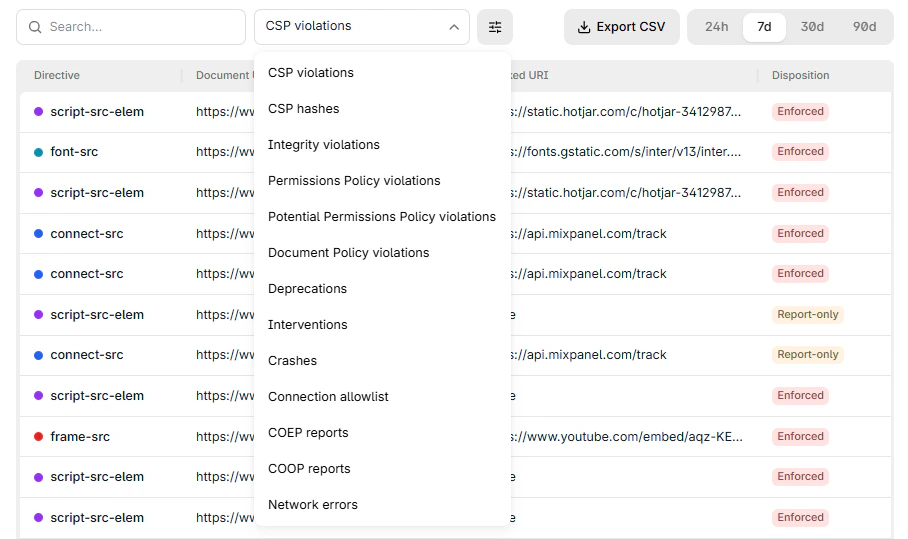
The report type dropdown lists every type:
Filter
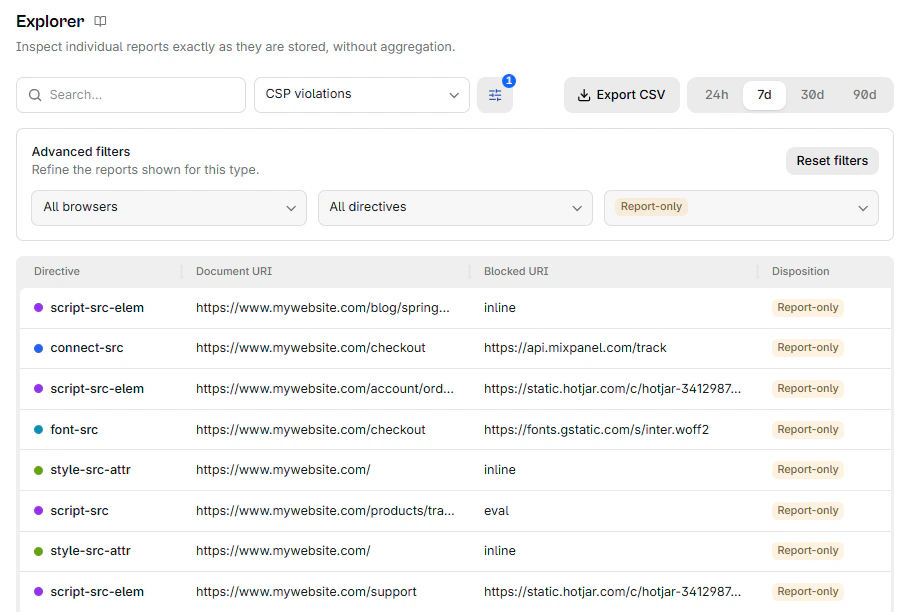
Advanced filters narrow the table further, and you can reset them in one action.
The available filters are fetched from the values present in your data for that type, so you are picking from what exists rather than from a fixed list. Depending on type you get some combination of browser, directive, disposition, destination, hash algorithm, policy, visibility, kind, and phase.
Set the range before filtering
Changing the time range clears every advanced filter. Choose the range first, then filter, or you will lose the selection you just made.
Filters here are independent of the aggregated pages. Arriving from a filtered CSP violations page does not carry that filter over.
Expanding the advanced filters adds a count badge and a reset control:
Read one report
Each report carries its type, id, received-at, report URL, browser, and operating system, plus the full stored JSON.
The JSON is the payload after ingestion filters ran. If you turned on Drop query strings and fragments or Drop referrer, those values are already gone here rather than hidden at display time. For more information, refer to Ingestion filters.
Export reports to CSV
Export CSV in the toolbar downloads the reports currently selected. The export starts from what the table shows. The report type, the time range, the search text, and every advanced filter apply to the file. Rows come out newest first, with no pagination.
A file holds at most 10,000 reports. The export keeps the newest ones and drops the rest, so narrow the range or the filters when the table holds more.
The file is UTF-8 with a byte order mark, so accented characters survive a double-click into Excel. It is named after the website and the type, for example centralcsp-csp-violation-raw-acme-store-2026-09-20.csv. The Viewer role is enough, and your plan has to include the report type.
Values that start with =, +, @, or - are written with a leading apostrophe, so a spreadsheet treats a reported URL as text rather than as a formula.
What the CSV export contains
The export carries one column per stored field, so the columns depend on the report type. There is no payload column: the JSON you read in the drawer is already split across those columns.
Every type shares these columns:
| Column | What it holds |
|---|---|
id | The report identifier, the same one the drawer shows |
received_at | When CentralCSP received the report, in UTC, in ISO 8601 form with fractional seconds |
ua_family, ua_version, ua_os | The browser, its version, and the operating system |
url | The report URL, the page the browser was on |
url_origin | The origin of that URL |
Each type then adds its own fields. The ones worth knowing:
| Type | Adds |
|---|---|
| CSP violations | effective_directive, document_url, blocked_url, disposition, original_policy, source_file, sample, line_number, column_number, status_code, referrer |
| CSP hashes | document_url, subresource_url, hash, hash_algorithm, destination, type |
| Integrity violations | document_url, blocked_url, destination, report_only |
| Permissions Policy, Document Policy | policy_id, disposition, message, source_file, line_number, column_number |
| Potential Permissions Policy | The same, plus allow_attribute and src_attribute |
| Connection allowlist | body_url (the blocked URL, or webrtc), connection (its scheme, or webrtc), allowlist (WebRTC reports only), disposition |
| Deprecations | body_id, anticipated_removal, message, source_file, line_number, column_number |
| Interventions | body_id, message, source_file, line_number, column_number |
| Crashes | reason, stack, is_top_level, visibility_state, crash_report_api |
| COOP | type, disposition, effective_policy, property, previous_response_url, next_response_url, opener_url, openee_url, other_document_url, initial_popup_url, referrer, source_file |
| COEP | type, blocked_url, destination, disposition |
| Network errors | type, phase, referrer, server_ip, protocol, method, status_code, elapsed_time, sampling_fraction |
Any column holding a URL is followed by its origin in a separate _origin column, such as blocked_url_origin next to blocked_url. Group on those when you want per-origin counts in a spreadsheet without parsing URLs.
The values are the stored ones, so ingestion filters have already run. A query string you asked to drop is absent from the file rather than blanked.
For a scripted export, or for more than 10,000 reports, use the same data through the API.